- For other hardware compatibility issues, refer to our known issues.
Error starting GDM
Этот раздел относится к ситуации, если при запуске Tails вы видите следующее сообщение об ошибке:
Error starting GDM with your graphics card: name of your graphics card [id] (rev number). Please take note of this error and visit https://tails.net/gdm for troubleshooting.
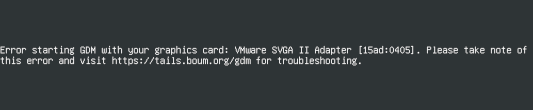
Определите название, идентификатор и номер ревизии (если имеется) вашей видеокарты.
Например, если ваше сообщение об ошибке начинается с:
Error starting GDM with your graphics card: NVIDIA Corporation [10de:0a6c] GT218M [NVS 3100M] (rev a2)
Название — NVIDIA Corporation GT218M [NVS 3100M].
Идентификатор — [10de:0a6c]. Идентификатор уникален для модели вашей видеокарты, но не уникален для вашего компьютера.
Номер ревизии — a2. Возможно, у вашей видеокарты нет номера ревизии.
Проверьте, есть ли ваша видеокарта в списке ниже. Например, вы можете поискать её название или идентификатор на этой странице.
Если ваша видеокарта есть в списке, проверьте, описано ли обходное решение, чтобы она работала в Tails.
If the workaround doesn't work, we are sorry that Tails does not work well on this computer. Our best hope is that a future update of Linux drivers will solve the problem.
If your graphics card is not listed, please contact our support team by email.
Укажите в вашем письме:
The version of Tails that you are trying to start.
The name, ID, and revision number (if any) of your graphics card.
You can send us a photo of the error message as it appears on your screen.
If your problem gets fixed in a future version of Tails, please let us know so we can update this page.
AMD Radeon HD
Affected graphics cards
Any graphics cards in the Radeon HD family might be affected.
Workaround
If the computer has another, integrated graphics card, try configuring the computer to use that one instead of the AMD graphics card. For example, using the following boot option:
modprobe.blacklist=amdgpumodprobe.blacklist=radeon
AMD Radeon R9
Affected graphics cards
| Name | ID | Revision number |
|---|---|---|
| Advanced Micro Devices, Inc. [AMD/ATI] Hawaii PRO [Radeon R9 290/390] | [1002:67b1] |
Workaround
Adding radeon.dpm=0 to the boot
options might fix the issue.
AMD Radeon RX 400 family
Affected graphics cards
| Name | ID | Revision number |
|---|---|---|
| Radeon RX 480 |
Workaround
Adding amdgpu.dc=0 to the boot
options might fix the issue.
Other possibly affected graphics cards
Other graphics cards in the Radeon RX 400 series might be affected.
AMD Radeon RX Vega family
Affected graphics cards
Graphics cards in the Radeon RX Vega series, as found in some AMD Ryzen processors, might be affected.
Workaround
Try starting Tails using the following boot option:
iommu=soft
Intel
Affected graphics cards
Various Intel graphics card, including but not limited to:
| Name | ID | Revision number |
|---|---|---|
| Intel Corporation TigerLake-LP GT2 [Iris Xe Graphics] | [8086:9a49] | |
| Intel Corporation JasperLake [UHD Graphics] | [8086:4e55] | |
| Intel Corporation Iris Plus Graphics G1 (Ice Lake) | [8086:8a56] |
Workaround
Try starting Tails using the following boot option:
i915.force_probe=MODEL
… replacing MODEL with the 4 characters you see after 8086: on the error
message.
For example, if you see an error about 8086:4c8a, use this boot option:
i915.force_probe=4c8a.
Intel UHD Graphics 620 GPU
For example, in the Dell Latitude 7490.
Try adding the following boot option when starting Tails:
i915.enable_psr=0
Multiple graphics cards
If the error message lists multiple graphics cards:
If possible, plug in the monitor into the motherboard's Intel graphics card, as opposed to the external Nvidia or AMD/ATI graphics card.
Explicitly select one of the two graphics adapters in the BIOS instead of letting the system choose one automatically. If this does not solve the problem, try selecting the other graphics adapter.
Try starting Tails using the following boot options. You should try only one of these boot options per start attempt.
modprobe.blacklist=nouveaunouveau.modeset=0
Intel HD Graphics (Bay Trail)
For example, in the Acer Aspire e13.
Try adding the following boot option when starting Tails:
plymouth.enable=0 disablehooks=plymouth
Other issues
Black screen with switchable graphics computers
Some computers with switchable graphics (such as Optimus) fail to choose a video card and end up on a black screen. This has been reported for MacBook Pro 6,2, MacBook Pro 10,1 Retina, MacBook Pro 15-inch (early 2011) and might affect many others.
There are several possible workarounds for this issue:
Explicitly select one of the two graphics adapters in the BIOS instead of letting the system choose one automatically. If this does not solve the problem, try selecting the other graphics adapter.
For the Mac computers, it is possible to use a third-party application, http://gfx.io/, to force integrated graphics only through macOS. Then restart in that special mode that works with Tails.
Virtual machines with virt-manager, libvirt, and QEMU
See the dedicated troubleshooting documentation about graphics issues in Tails running inside a virtual machine with virt-manager.
Virtual machines with VMware
To improve support of Tails running inside a virtual machine with VMware,
install the open-vm-tools-desktop software package as Additional
Software in Tails.
Probing EDD error
Use these instructions if Tails failed to start and displayed the following error:
Probing EDD (edd=off to disable)...
For the guide's "Modify the boot options as needed" step, type
edd=offto add this option to the command line.
Display artifact when starting Tails on Intel display
If you see screen tearing and color artifact shift through display with an Intel graphics card, try this:
- Right-click on the desktop
- Click Display Settings
- Change the refresh rate to a different value.
For example, setting the refresh rate to 48 HZ fixed the problem on Tails 5.9 with this hardware: Gemini Lake N4100 (Intel Graphics 600).