To uninstall Tails from a USB stick, and use it for something else, you have to format it.
The content of the USB stick is lost in the operation, but an attacker might still be able to tell that Tails was installed on that USB stick using data recovery techniques.
Erasing Tails from the USB stick
Zuerst löschen Sie Tails vom USB-Stick:
Start on Windows.
Select the Start
 button and open the Settings app.
In the Settings app, choose System ▸ Storage ▸ Advanced storage settings ▸ Disk & volumes.
Plug in the Tails USB stick that you want to uninstall.
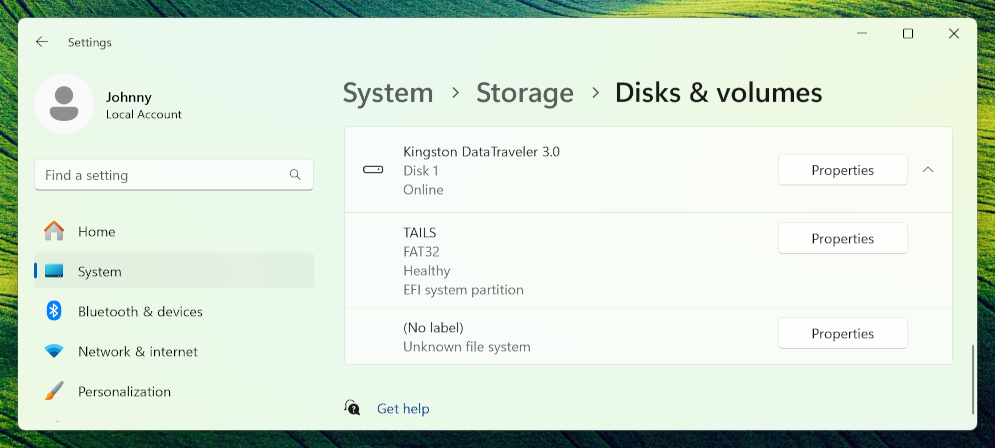
Suchen Sie den USB-Stick in der Liste der Laufwerke.
Suchen Sie das Volume mit dem Namen TAILS, das über ein FAT32-Dateisystem verfügt.
This volume corresponds to the Tails system partition on the USB stick.
Select the Properties button corresponding to the TAILS volume.
In the properties of the TAILS volume, select Delete.
Windows gibt nach dem Löschen keine Rückmeldung.
Select Disks & volumes to go back to the list of volumes.
Falls ein beständiger Datenspeicher auf dem USB-Stick vorhanden ist, erscheint auf dem USB-Stick auch ein Volume mit dem Namen (No label).
Dieses Volume entspricht dem beständigen Datenspeicher von Tails auf dem USB-Stick.
Wählen Sie die Schaltfläche Eigenschaften aus, die dem Volume(No label) zugeordnet ist.
Wählen Sie in den Eigenschaften des Volumes (No label) die Option Löschen aus.
Windows gibt nach dem Löschen keine Rückmeldung.
Select Disks & volumes to go back to the list of volumes.
Der USB-Stick enthält nun keine Volumes mehr und ist vollständig unzugewiesen.
Creating a new partition on the USB stick
Erstellen Sie anschließend eine neue Partition auf dem USB-Stick:
Wählen Sie die Schaltfläche Eigenschaften für den entsprechenden USB-Stick aus.
Wählen Sie in den Eigenschaften des USB-Sticks die Option Konvertieren in MBR aus.
Select Disks & volumes to go back to the list of volumes.
Klicken Sie auf den Knopf Volume erstellen für den USB-Stick und wählen Sie Einfaches Volume Erstellen.
Geben Sie im Dialogfeld Neues Volume eine Bezeichnung Ihrer Wahl ein und wählen Sie Formatieren aus.
Ziehen Sie den USB-Stick ab.
Close the Settings app.
Select the Start
button and open the File Explorer app.Plug back the USB stick.
Ihr neues Volume erscheint in der linken Seitenleiste des Datei-Explorers.