To uninstall Tails from a USB stick, and use it for something else, you have to format it.
The content of the USB stick is lost in the operation, but an attacker might still be able to tell that Tails was installed on that USB stick using data recovery techniques.
Apagando arquivos Tails do pen drive
Primeiro, apague o Tails do pendrive:
Comece no Windows.
Select the Start
 button and open the Settings app.
No aplicativo Configurações, selecione Sistema ▸ Armazenamento ▸ Configurações avançadas de armazenamento▸ Disco e volumes.
Plug in the Tails USB stick that you want to uninstall.
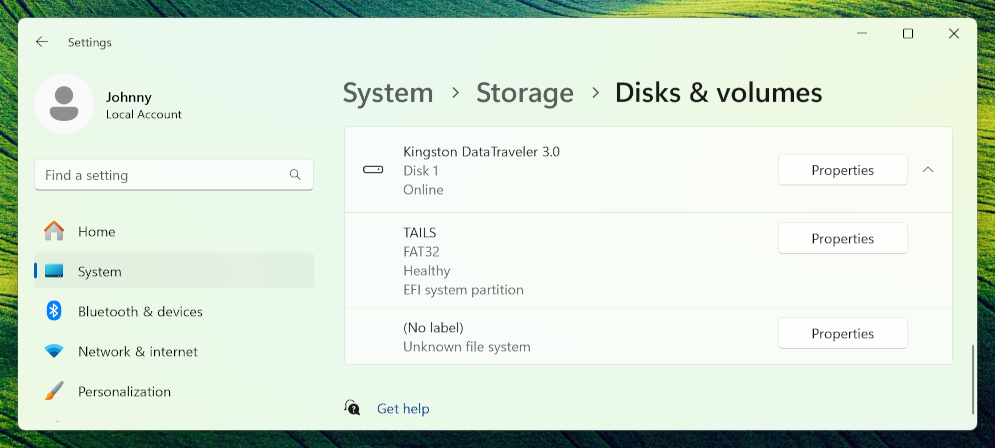
Identifique o pen drive na lista de discos.
Identifique o volume chamado TAILS, que possui um sistema de arquivos FAT32.
This volume corresponds to the Tails system partition on the USB stick.
Select the Properties button corresponding to the TAILS volume.
Nas propriedades do volume TAILS, selecione Excluir.
Windows gives no feedback after deletion.
Select Disks & volumes to go back to the list of volumes.
If there is a Persistent Storage on the USB stick, a volume called (No label) also appears on the USB stick.
This volume corresponds to the Tails Persistent Storage on the USB stick.
Select the Properties button corresponding to the (No label) volume.
In the properties of the (No label) volume, select Delete.
Windows gives no feedback after deletion.
Select Disks & volumes to go back to the list of volumes.
The USB stick now has no volumes and is entirely unallocated.
Creating a new partition on the USB stick
Em seguida, crie uma nova partição no pendrive:
Select the Properties button corresponding to the USB stick.
Nas propriedades do pen drive, selecione Converter para MBR.
Select Disks & volumes to go back to the list of volumes.
Select the Create Volume button for the USB stick and choose Create Simple Volume.
In the New Volume dialog, enter a label of your choice and select Format.
Desconecte o pendrive.
Close the Settings app.
Select the Start
button and open the File Explorer app.Plug back the USB stick.
Your new volume appears in the left sidebar of the File Explorer.